Translate a PDF on your phone
A letter, a manual or a notice in a language you do not read? PDF Maker translates the whole PDF on your Android phone, paragraph by paragraph, and keeps the headings, lists and tables. Save the translation as a PDF or a Word file. Your document is not uploaded.

These steps are for PDF Maker, our Android app. The app does the work on your phone; this web page does not touch your files.
How to translate a PDF
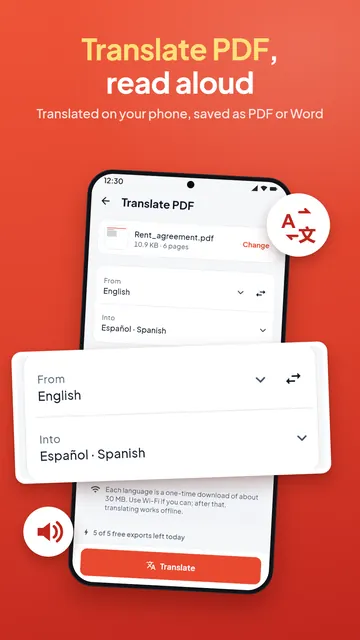
- Open PDF Maker and tap Translate PDF in the Text group, then choose the PDF.
- Under From, leave Detect automatically or pick the document's language. Under Into, search for the language you want.
- Under Save as, choose PDF or Word file (.docx).
- Tap Translate. The first time you use a language, the app downloads it (about 30 MB, once).
- Open, share or save the translated file. Your original is not changed.
Languages and the one-time download
PDF Maker translates between 59 languages, among them English, Hindi, Bengali, Tamil, Arabic, Spanish, Portuguese, French, German, Indonesian, Russian, Turkish, Chinese, Japanese and Korean. Each language is a download of about 30 MB the first time you use it; use Wi-Fi if you can. After that, translating into and from it works offline.
What the translation keeps
The text is translated paragraph by paragraph, so sentences that run across lines stay whole. Headings, lists, tables and the order of the pages are kept, and the translated file is laid out again with fonts that show the new language, including right-to-left scripts. Saving as Word gives you a file you can correct and edit further.
Scanned pages are read with text recognition first (Latin scripts and Devanagari). A scan in another script cannot be read, so translate a PDF with real text, or make a searchable PDF first if the script is supported.
Machine translation: check what matters
The translation is made by a machine translation model on your phone. It is good for understanding a document and for drafts, but it can miss the meaning of legal terms, names and numbers. Check important documents before you rely on them, and use a certified translator where an office asks for one. Without Pro, translating is one of the day's smart exports; the app shows how many are left before you start.
Listen to a PDF with Read aloud
Read aloud reads a PDF to you with your phone's text-to-speech voices, in reading order, and highlights each sentence as it goes. Change the speed, pick a voice, and skip forward or back by paragraph. Scanned pages are read with the text reader first. If your phone has no voice for a language, add one in Android's text-to-speech settings.
Questions
How do I translate a PDF on my phone?
Open PDF Maker, tap Translate PDF, choose the file and the language to translate into, pick PDF or Word, and tap Translate.
Can I translate a PDF offline?
Yes, after the first use of each language: the app downloads it once (about 30 MB), then translates without internet.
Is my PDF uploaded for translation?
No. The translation runs on your phone and the file never leaves it.
Can I translate a PDF from English to Hindi?
Yes. Choose English (or Detect automatically) under From and Hindi under Into. The same works for 59 languages.
Can the app read a PDF out loud?
Yes. Read aloud reads the PDF with your phone's voices and shows each sentence as it is read.