Convert PDF to Word on your phone
Need to change a PDF someone sent you? PDF Maker converts PDF to Word on your Android phone: the result is an editable .docx with the headings, lists, tables and pictures where they were. Nothing is uploaded, and it works offline.

These steps are for PDF Maker, our Android app. The app does the work on your phone; this web page does not touch your files.
How to convert a PDF to Word
- Open PDF Maker and tap PDF to Word in the Convert group.
- Choose the PDF. It can come from your phone, from Downloads, or from Google Drive, Dropbox or OneDrive through Android's file picker.
- If the PDF is a scan, the app says so and asks for the language of the text: English and Latin scripts or Hindi, Marathi, Nepali (Devanagari).
- Tap Convert. The app reads every page on the phone and writes the Word file.
- Open, share or save the .docx. It opens in any word processor that reads DOCX files, on a phone or a computer.
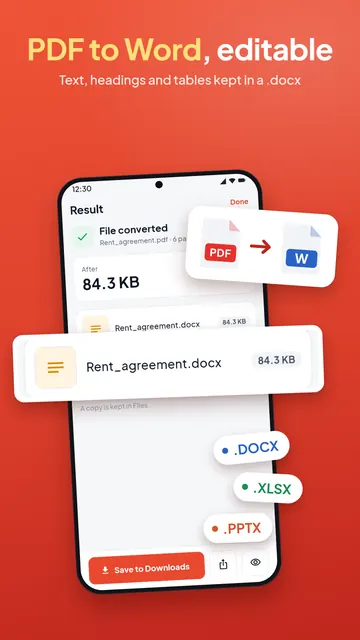
What the Word file keeps
- Text you can edit, with its font size, bold and colour, laid out as paragraphs instead of one line per row.
- Headings and lists, so the document keeps its structure.
- Tables as real Word tables, with rows and cells you can change.
- Columns are read in order, and pictures stay where they were on the page.
A PDF is built for printing, not editing, so a complex layout (text wrapped around shapes, forms, unusual fonts) can need a little tidying after converting. Simple letters, reports, CVs and notices usually convert cleanly.
Scanned PDF to Word with OCR
A scanned page is a picture of text, not text. PDF Maker reads it with text recognition (OCR) on the phone, so the words in the Word file can be edited. OCR reads Latin-script languages (English, Spanish, French, Indonesian and others) and Devanagari (Hindi, Marathi, Nepali). The result screen says how many pages were read with OCR. A page that cannot be read as text goes into the file as a picture, so nothing is lost.
OCR can misread a blurred photo or very small print. Check names, numbers and dates before you send the document on. For a sharper start, scan the pages with PDF Maker instead of photographing them.
Offline, with no upload
The conversion runs on your phone. Your PDF is not sent to a server, there is no account to make, and it works without internet. The text model for scanned pages comes with Google Play services; on some phones it downloads once, the first time you use it.
Limits
- Without Pro, PDF to Word is one of the day's smart exports. The app shows how many are left before you start; Pro lifts the limit.
- A PDF locked with a password has to be unlocked first (you need to know the password).
- To change a few words without leaving PDF, edit the PDF text directly instead.
Questions
How do I convert a PDF to Word on my phone?
Open PDF Maker, tap PDF to Word, choose the PDF and tap Convert. Save or share the .docx file it makes.
Can I convert a PDF to Word offline?
Yes. The conversion runs on the phone and needs no internet. Scanned pages need the phone's text model, which may download once the first time.
Will the Word file be editable?
Yes. Text, headings, lists and tables become editable Word content. Pictures stay pictures.
Can I convert a scanned PDF to Word?
Yes, for text in Latin scripts and Devanagari. The app reads the scan with OCR; a page it cannot read is added as a picture.
Is my PDF uploaded?
No. PDF Maker converts the file on your phone and never uploads it.
Can I turn the Word file back into a PDF?
Yes. Use Word to PDF in the same app.