Edit a PDF on your phone
A wrong date, a typo in a name, a logo to add: PDF Maker edits the PDF itself on your Android phone. Tap a line to change it, type new text anywhere, add pictures and shapes, or highlight and draw. Your file is not uploaded.

These steps are for PDF Maker, our Android app. The app does the work on your phone; this web page does not touch your files.
Change the text in a PDF
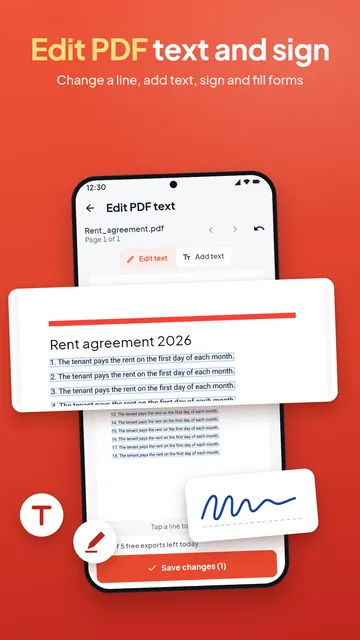
- Open PDF Maker and tap Edit PDF text in the Scan & sign group, then choose the PDF.
- In Edit text mode, tap a line on the page. Type the new words, or tap Delete line.
- To write something new, switch to Add text and tap where the text should start. Turn on Bold if you need it.
- Tap Save changes. The app saves a new copy and leaves your original as it was.
The new words are real text: they can be selected and searched like the rest of the page. A changed line keeps its own font when the file contains that font with every letter you typed; otherwise the app uses a similar standard font and tells you which lines it changed that way. If a letter cannot be drawn by any font in the app, the app lists it instead of dropping it quietly.
Editing a scanned PDF
A scanned page is a picture, so it has no lines of text to tap. You can still Add text on top of it, or first make the scan searchable with OCR. To turn the whole document into an editable file, convert it with PDF to Word.
Add an image, a logo or shapes
- Tap Add image & shapes and choose the PDF.
- Add a Picture (a logo, a stamp, a photo) or a Rectangle, Ellipse, Line or Arrow.
- Drag it into place and use the sliders for Size, Turn and Opacity; shapes also have a line colour, a fill and a line width.
- Choose This page or All pages (a logo on every page works as an image watermark), then tap Add to PDF.
Shapes stay sharp at any zoom, and pictures keep their transparency, so a PNG logo has no white box around it.
Highlight, draw and write notes
Annotate PDF is for marking a document up: a highlighter, a pen for underlines and circles, and text notes. Notes are drawn onto the page, so they show the same in every PDF app and in any language you type.
More ways to change a PDF
- Sign a PDF or fill in a PDF form.
- Black out private details for good with Redact PDF.
- Reorder, turn or delete pages: Organise pages. Cut margins: Crop PDF.
- Add a text watermark or page numbers.
Without Pro, saving text edits is one of the day's smart exports; the app shows how many are left before you start. Adding pictures, shapes and notes has no daily limit.
Questions
How do I edit text in a PDF on my phone?
Open PDF Maker, tap Edit PDF text, choose the PDF, tap the line you want to change, type the new words and tap Save changes.
Can I add text anywhere on a PDF?
Yes. In Edit PDF text, switch to Add text and tap where it should go. Annotate PDF also adds notes, in any script.
Can I edit a scanned PDF?
A scan has no text lines to change, but you can add text on top of it, make it searchable with OCR, or convert it to Word to edit everything.
How do I add a logo or picture to a PDF?
Use Add image & shapes: pick the picture, drag it into place, size it and add it to one page or all pages.
Is the original PDF changed?
No. PDF Maker saves your changes as a new copy, on your phone, without uploading anything.