Compress a PDF to a KB size, from 50 KB to 2 MB
Forms and portals often refuse a PDF above a set size. Here is how to bring a PDF under 100 KB, 200 KB, 500 KB, 1 MB or any size you type, what quality to expect at each size, and how PDF Maker does it on your phone.

The tool above works in your browser and your file stays on your device. It keeps the text when it can; only if your size needs it are the pages turned into sharp images. The steps below are for PDF Maker, our Android app, which can keep the text and works offline.
The steps in PDF Maker
- Open PDF Maker and tap Reduce PDF size.
- Tap Choose a PDF. You can also share a PDF to the app from WhatsApp, Gmail or your file manager.
- Under Make it smaller than, tap a size: 50 KB, 100 KB, 200 KB, 300 KB, 500 KB, 1 MB or 2 MB. For any other size, tap Custom and type it in KB or MB.
- Under How, pick one:
- Best fit to the size reaches the target. The pages become pictures, so the text can no longer be selected or searched.
- Keep text where possible makes the pictures inside the PDF smaller first, so the text stays sharp and selectable. Only if that is not enough do the heaviest pages become pictures.
- Tap the button, which names your size: for example Reduce to under 200 KB.
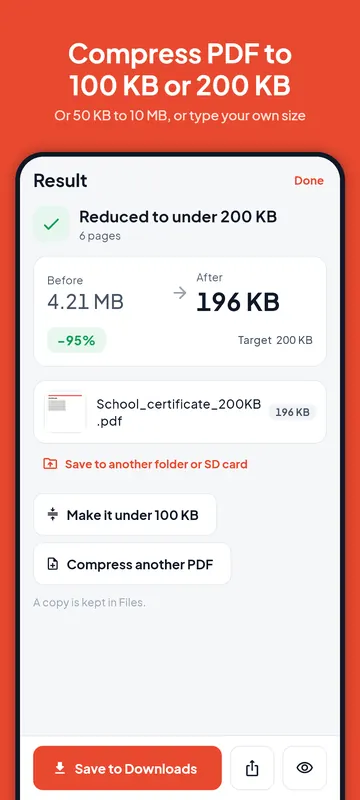
- The result shows the size before and after. Save it to Downloads or share it straight to the portal, WhatsApp or email. Your original file is never changed.
If the PDF has selectable text, the app warns you before Best fit turns its pages into pictures. If a PDF cannot be made any smaller, nothing is saved and nothing is counted against your free exports.
What each size can hold
A PDF made in Word or sent by a bank is mostly text, and text is tiny: in our tests a dense 10-page text PDF was 72 KB before we did anything. What makes PDFs big is scanned pages and photos. To fit a smaller size, the app lowers the resolution of those pages (how many dots per inch, dpi, each page keeps) and the JPEG quality, and searches for the best result that still fits.
The table shows how much detail was left when we brought colour scans of 1, 5 and 20 pages under each target with Best fit. As a guide, around 100 dpi or more reads like a normal scan; between about 40 and 65 dpi normal-size print is still readable but small print and stamps get soft; below about 30 dpi pages look rough.
| Target | 1-page scan | 5-page scan | 20-page scan |
|---|---|---|---|
| 100 KB | 99 dpi | 43 dpi | 18 dpi |
| 200 KB | 142 dpi | 64 dpi | 29 dpi |
| 500 KB | already smaller | 101 dpi | 50 dpi |
| 1 MB | already smaller | 143 dpi | 73 dpi |
These are test files on a computer, not your phone, and real documents vary: a page with less colour and fewer photos keeps more detail. The useful rule is simple: divide the target by the number of pages. 200 KB for 5 pages is 40 KB a page, which suits text scans; 200 KB for 20 pages is 10 KB a page, which is very little.
Compress a PDF to 50 KB
50 KB is tight. It suits one or two pages of mostly black-and-white text, such as a single certificate or a one-page letter. A multi-page colour scan at 50 KB will be blurry, so first delete pages the form does not need with Organise pages, then reduce. If the form asks for a 50 KB photo or signature rather than a PDF, use Photo to KB instead: a JPG is the right file for that.
Compress a PDF to 100 KB
In our test, a one-page scan brought under 100 KB kept 99 dpi and looked like the original. Five pages kept 43 dpi: readable, softer. Twenty pages kept only 18 dpi, which is too little to read comfortably. So 100 KB works well for 1 to 3 pages. For more pages, check whether the form accepts several files (use Split PDF) or a larger size.
Compress a PDF to 200 KB
200 KB is the size people search for most. A one-page scan kept 142 dpi, close to a good original; five pages kept 64 dpi, comfortable for normal print; twenty pages kept 29 dpi. 200 KB is a good fit for documents of up to about 5 scanned pages. Text PDFs with a logo or a small photo usually fit easily, and with Keep text where possible their text stays selectable.
Compress a PDF to 300 KB
300 KB gives 50 percent more room than 200 KB: 60 KB a page for a 5-page scan, enough for clear text. Tap the 300 KB size in the app. We have no separate test row for it; expect results between the 200 KB and 500 KB rows above.
Compress a PDF to 500 KB
At 500 KB a five-page scan kept 101 dpi, as clear as a normal scan, and twenty pages kept 50 dpi. A one-page scan of 366 KB was already under the target, so the app had nothing to do: it tells you when a file already fits and saves it as it is.
Compress a PDF to 1 MB
1 MB is 1000 KB in the app. A five-page scan kept 143 dpi and a twenty-page scan 73 dpi, both comfortable to read. 1 MB is a common limit for email attachments to offices and for uploads of longer documents. Many phone scans of a few pages are already under 1 MB.
Compress a PDF to 2 MB
2 MB is twice the room of 1 MB, so even long scans keep good detail. It is the usual size to aim for when a scanned report or a set of documents of 10 to 20 pages is too big for a portal. Tap 2 MB in the app.
Other sizes: 20 KB, 150 KB, 400 KB and more
Tap Custom and type the number, then choose KB or MB. The app aims just under it. Very small targets on long scans may not be reachable. The app then tells you plainly the smallest size it could reach, suggests a bigger target or splitting the file first, and does not count the attempt against your free exports. When a target forces a very low resolution, it warns you that small text may be hard to read.
MB vs KB: what a form means
1 MB is 1000 KB, and 1 KB is 1000 bytes, in the decimal units that Android, macOS and most websites use. Windows and some older systems count 1 KB as 1024 bytes and 1 MB as 1024 KB. The difference matters at the edge: a form that says "200 KB" may mean 200,000 bytes or 204,800 bytes.
PDF Maker counts 1 KB as 1000 bytes on purpose. A file it makes "under 200 KB" is at most 200,000 bytes, so it also fits a form that counts 1024 bytes to the KB. A 4 MB scan is 4000 KB; to reach 200 KB it has to lose 95 percent of its size, which is why long scans lose detail. Try the numbers in the MB to KB converter.
If the PDF will not get small enough
- Delete pages the form does not need (Organise pages), then reduce again.
- If the portal allows several files, split the PDF into parts (Split PDF) and reduce each part.
- Rescan with fewer pages per file, or in better light so the pages are cleaner.
- A PDF locked with a password must be unlocked first: see how to unlock a PDF you know the password of.
Free plan and Pro
Reducing a PDF uses one of the 5 free size-target exports of the day, and only when it reaches your size. Pro removes the daily limit and adds Compress many PDFs, which brings a whole batch under one size and saves them together.
Questions
Can I compress a PDF to 100 KB without losing quality?
Only if the PDF is mostly text, or one or two scanned pages. Text PDFs are small already, and Keep text where possible leaves their text untouched. A long scan has to lose detail to fit 100 KB, because each page gets only a few KB.
Will the text in my PDF stay selectable?
With Keep text where possible, yes, on every page that fits; the app reports how many pages kept their text. Best fit always reaches the target, but its pages become pictures. The compress tool on this page also keeps the text when it can; only when your size needs it does it turn the pages into sharp images.
Is my PDF uploaded anywhere?
No. PDF Maker works on your phone. The file is not uploaded, and no account is needed. The compress tool at the top of this page works in your browser and does not upload it either.
Does PDF Maker count 1 MB as 1000 KB or 1024 KB?
1000 KB, with 1000 bytes to the KB. A result under the size you chose is under it in both ways of counting.
How many PDFs can I compress for free?
Five size-target exports a day on the free plan, shared with Photo to KB and Unlock PDF. An attempt that does not reach your size is not counted. The count starts again at midnight.