Sign a PDF on your phone
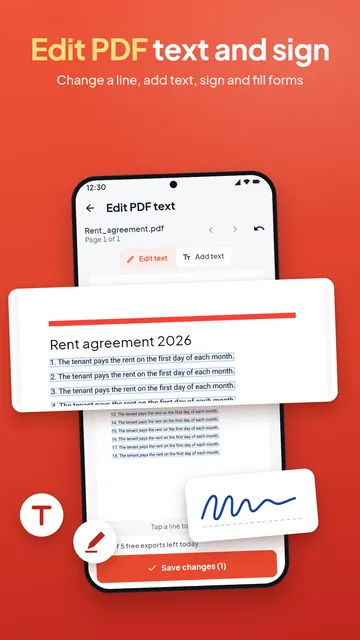
A rental agreement, a consent form or an offer letter to sign and send back today? PDF Maker puts your signature on a PDF on your Android phone: draw it, type it or reuse one you saved, place it, and share the signed copy. Nothing is uploaded.

These steps are for PDF Maker, our Android app. The app does the work on your phone; this web page does not touch your files.
How to sign a PDF
- Open PDF Maker and tap Sign PDF in the Scan & sign group, then choose the PDF.
- Go to the page that needs your signature with the page arrows.
- Make your signature: Draw it with your finger, Type your name and pick a style (Flowing, Casual or Classic), or open Saved to reuse one. Turn on Keep it for next time to save it.
- Drag the signature to the line where it goes, set its size with the slider, and tap Place here. Use Add again for initials on other pages.
- Save or share the signed PDF. The text of the document is kept as it was.
Tips for a signature that looks right
- Draw large and steady across the pad: a big drawing still looks smooth when it is made smaller on the page.
- Make the signature a little smaller than the space for it, so it sits on the line rather than across the text.
- For a form, fill in the fields first, then sign. A signature field in a form is signed with Sign PDF.
- Need your signature as a picture for an online application? Signature clean-up makes it crisp on a white background at the KB size a form asks for (see photo and signature to KB).
What kind of signature is this?
PDF Maker adds a picture of your handwritten or typed signature to the page, the same as signing a printout and scanning it. It is not a certificate-based digital signature (the kind made with a digital certificate or a government ID service). Where a signed copy is accepted, that is all you need; if a portal asks for a digital signature certificate, use the service it names.
Your signature stays on your phone
The document is signed on the phone, and saved signatures are kept only in the app on your phone. Nothing is uploaded and there is no account. Without Pro, the number of PDFs you can sign each day is limited; the app shows what is left before you start, and Pro lifts the limit.
Questions
How do I sign a PDF on my phone?
Open PDF Maker, tap Sign PDF, choose the file, draw or type your signature, drag it into place, tap Place here and save.
Can I save my signature for next time?
Yes. Turn on "Keep it for next time" and it appears under Saved whenever you sign.
Can I sign several pages?
Yes. Place the signature, move to another page and tap Add again, as many times as you need in one document.
Is it a legally valid digital signature?
It is a picture of your signature on the page, not a certificate-based digital signature. Use it where a signed copy is accepted.
Is my signature uploaded anywhere?
No. Signing happens on your phone, and saved signatures stay in the app.