Convert PowerPoint to PDF on your phone
Slides are easier to share, print and submit as a PDF. PDF Maker converts PowerPoint to PDF on your Android phone, one page per slide, and the file is not uploaded.

These steps are for PDF Maker, our Android app. The app does the work on your phone; this web page does not touch your files.
How to convert PowerPoint to PDF
- Open PDF Maker and tap PowerPoint to PDF in the Convert group.
- Tap Choose a document and pick the .pptx file, from your phone or from Google Drive, Dropbox or OneDrive through Android's file picker.
- Tap Convert to PDF, then save or share the PDF.
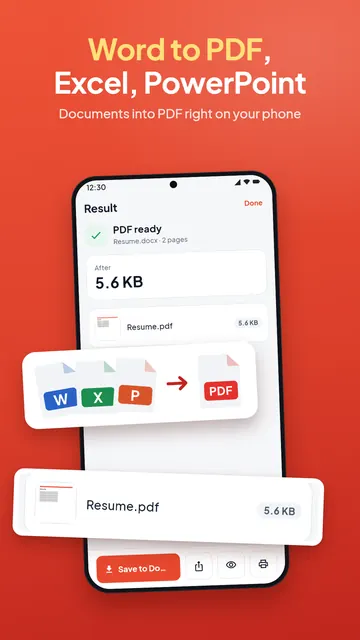
What the PDF keeps
Each slide becomes one page at the slide's own size. Text boxes, shapes, pictures and tables are placed where the slide has them, on the slide's background and its master's design. Text keeps its fonts, sizes, colours, bold, italic and underline, bullets and numbering, in any script.
Charts, SmartArt and videos are left out, and the app tells you when a slide had them. Hidden slides are skipped. Fonts the phone does not have are replaced with the closest match.
Which files work
- .pptx, .pptm, .ppsx and .potx files.
- Old .ppt files (PowerPoint 97-2003): save them as .pptx in a presentation app first.
Print slides as handouts
To save paper, open the new PDF in Pages per sheet and put 2, 4, 6 or 9 slides on each page, or make it greyscale for black-and-white printing. Slides with big pictures can make a large file: reduce the PDF size if an email or a portal has a limit.
Questions
How do I convert a PPT to PDF on my phone?
Open PDF Maker, tap PowerPoint to PDF, choose the .pptx file and tap Convert to PDF.
Are animations and videos kept?
No. A PDF shows each slide as one still page; videos, charts and SmartArt are left out.
Can I put several slides on one page?
Yes. After converting, use Pages per sheet to place 2, 4, 6 or 9 slides on each page.
Is there a daily limit?
No. PowerPoint to PDF has no daily limit, and the file is converted on your phone.